How to Create a Quote
How to create an accurate paint repair quote for any make and model with PaintWizz.
Form anywhere in the application, click on the "New Quote" button at the top of the screen
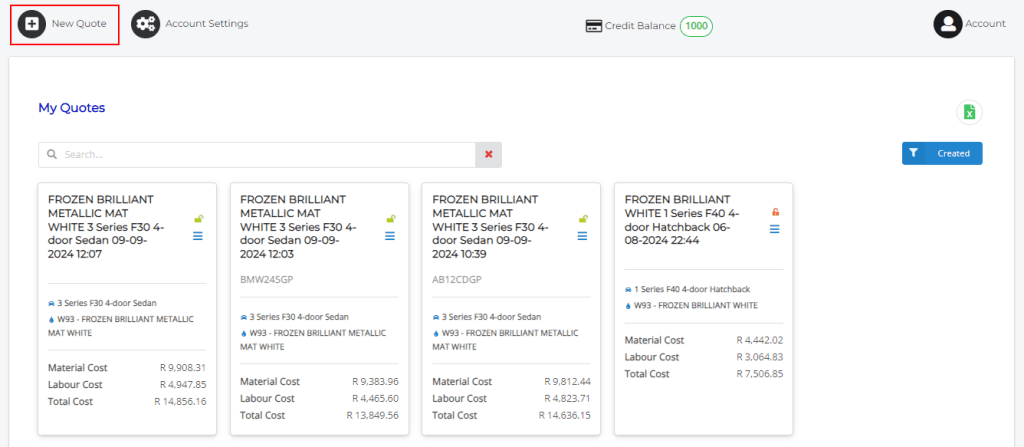
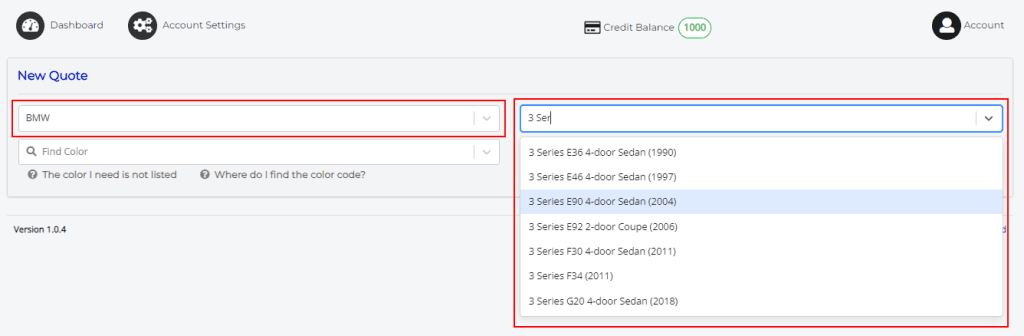
Next, use the input fields to find and select the relevant vehicle manufacturer, and vehicle model. Do this by typing any part of the manufacturer name and model name into the fields provided, and selecting the correct option from the list.
As soon as the model has been selected, the system will display a generic graphic for the model's body type. For example, a sedan will be displayed for a BMW 3 Series and Audi A4, but a generic graphic representation of a SUV will be displayed for a BMW X3 and an Audi Q5. It is important to note that although graphics are generic, calculations are model specific as we carry the correct size for each panel for each model.
To zoom into a specific area of the graphic, double click on the graphic, or scroll your mouse wheel forward. You can also drag the image in any direction within the viewer.
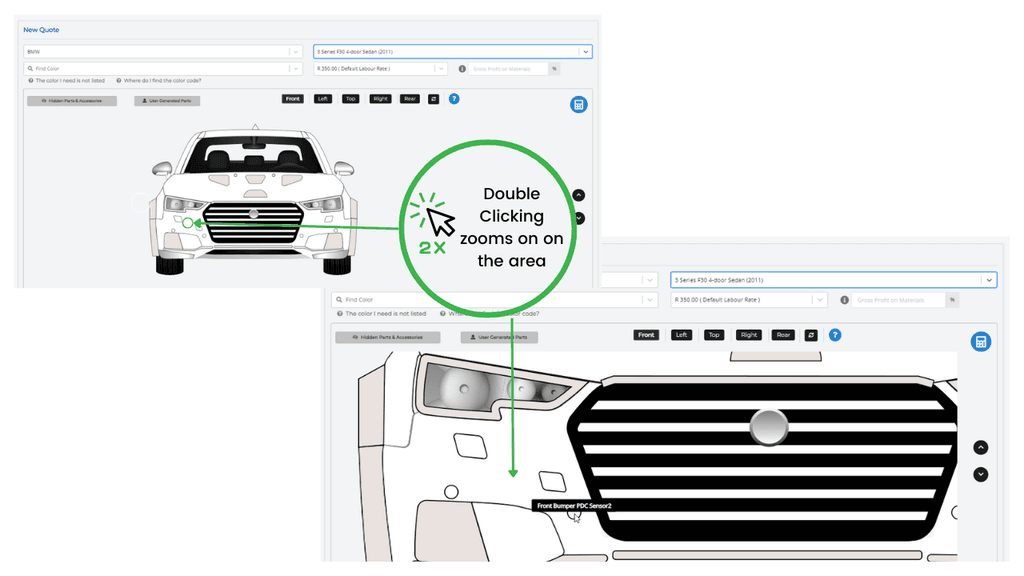
To reset the pan and zoom, click the "Refresh" button.
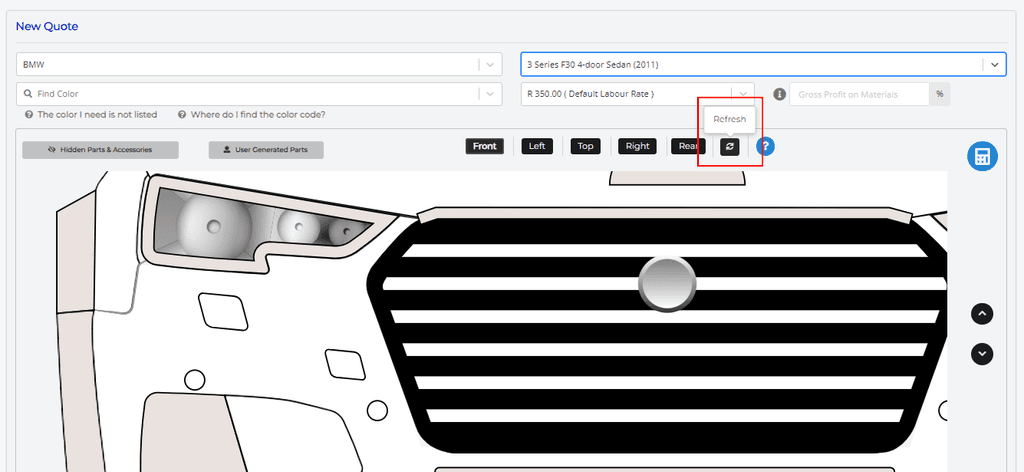
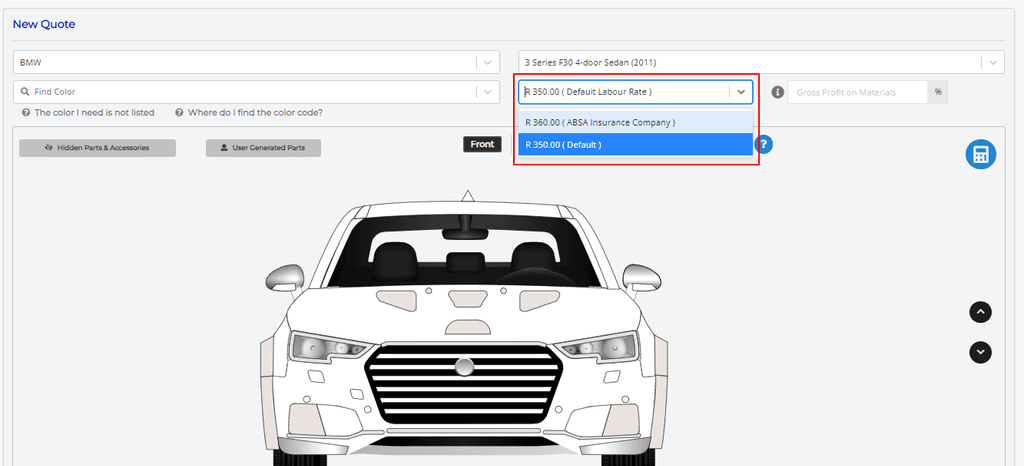
Next, select the paint color, and the labor rate. If you set up negotiated rates for specific insurers on your profile, they will be listed for selection.
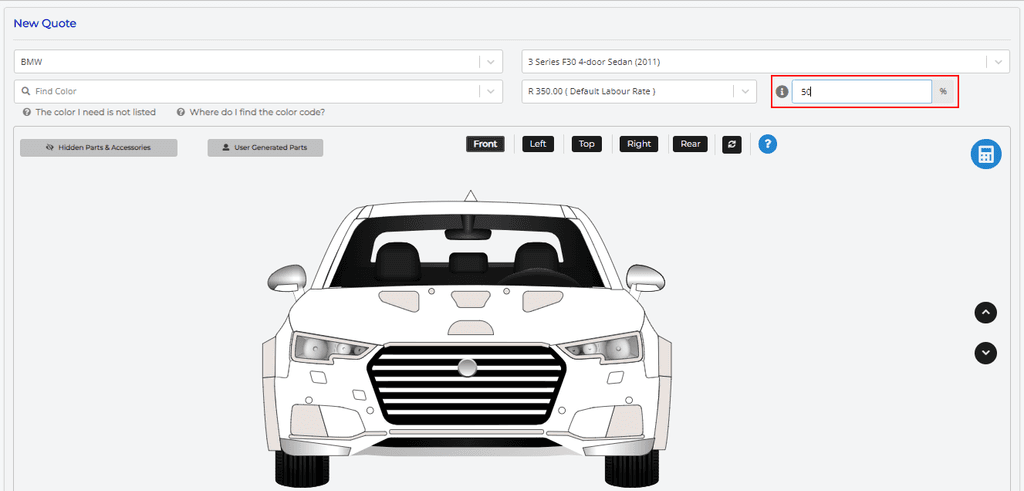
You also have the option to supply the Gross Profit percentage you would like to add for materials. Leave this field blank to use the system default.
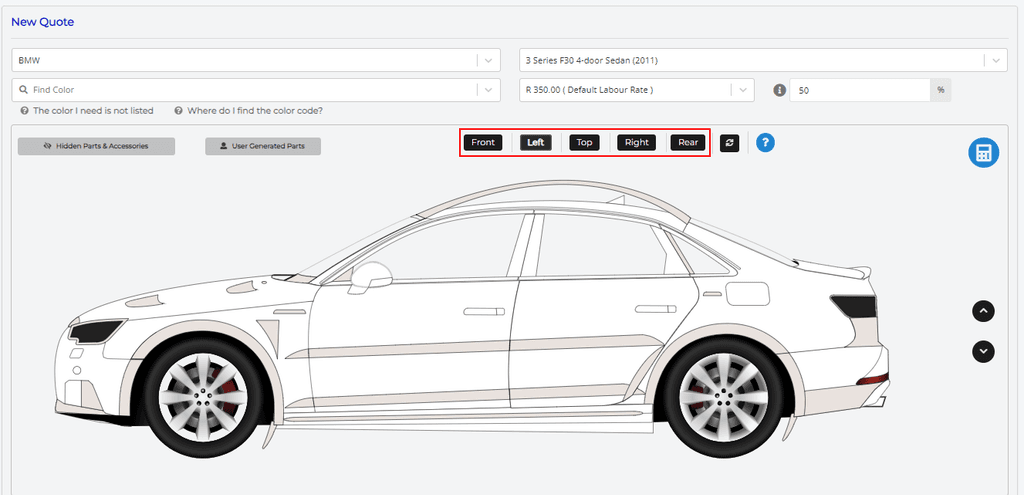
You can now continue to add the panels to be repaired to your quote. Each of the selectable panels, will display the name of the panel next to the mouse pointer. Clicking on a part, will display a menu containing a number of paint operations that can be performed. Add the part to the quote by selecting the correct operation. Repeat the process for all panels to be included in the repair quotation.

Use the buttons at the top of the graphic to switch between the front, rear, left, and right view of the vehicle.
All parts to be included in the quote, with the operation to be performed for each, will be displayed below the graphics.
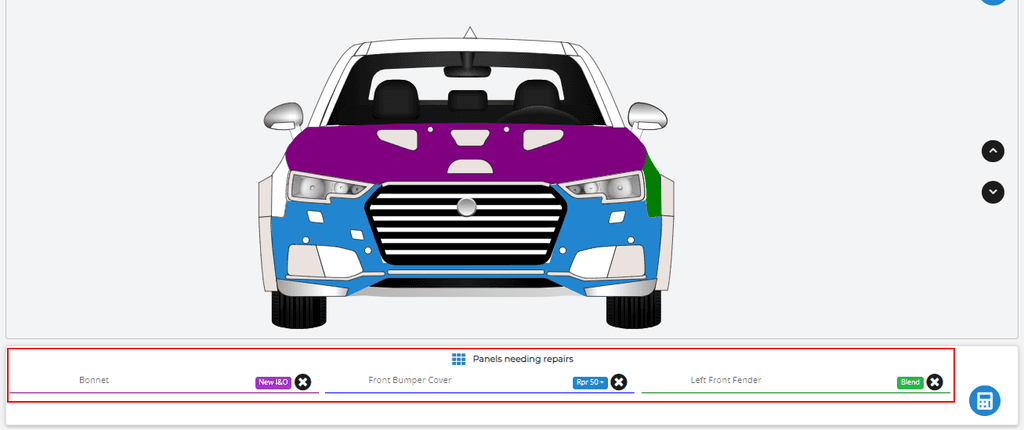
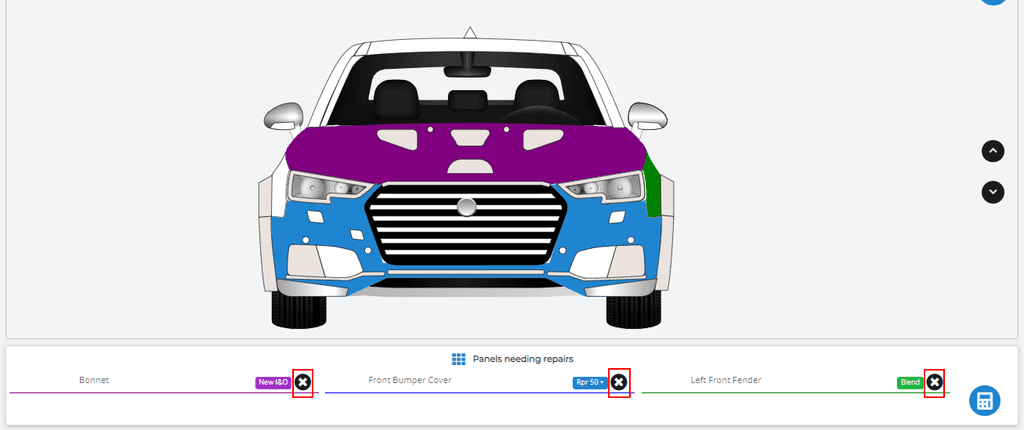
You can remove a part by clicking on the black cross next to the operation.
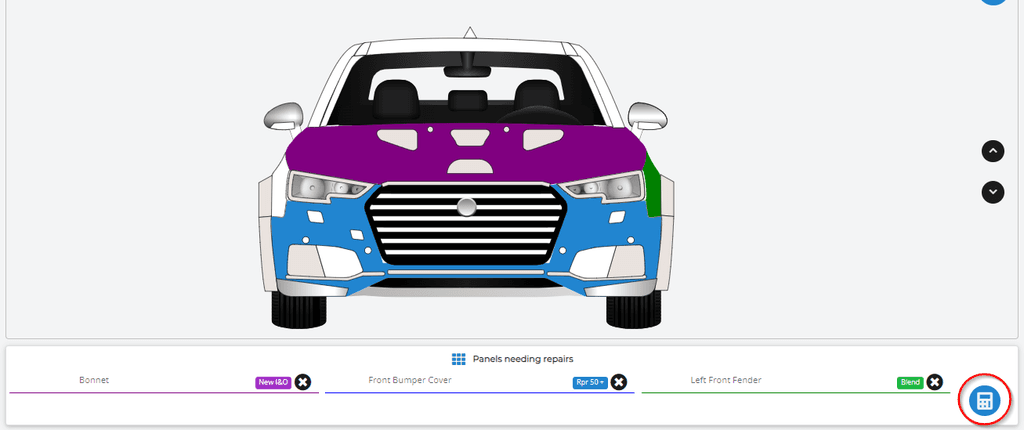
When you are sure that all the parts have been correctly added, click on the calculate button.
The quote results will be displayed at the bottom of the screen.
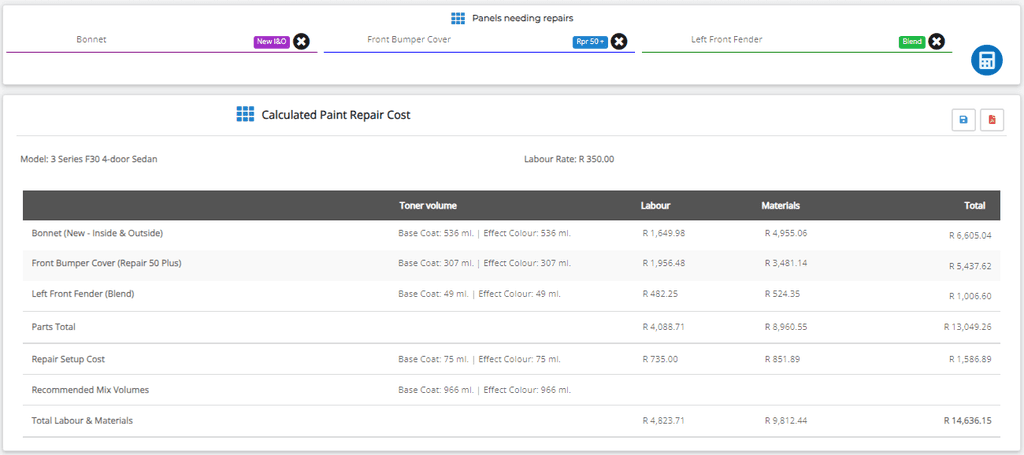
To print the quote, click on the "Generate Printable PDF" button and complete the relevant fields.
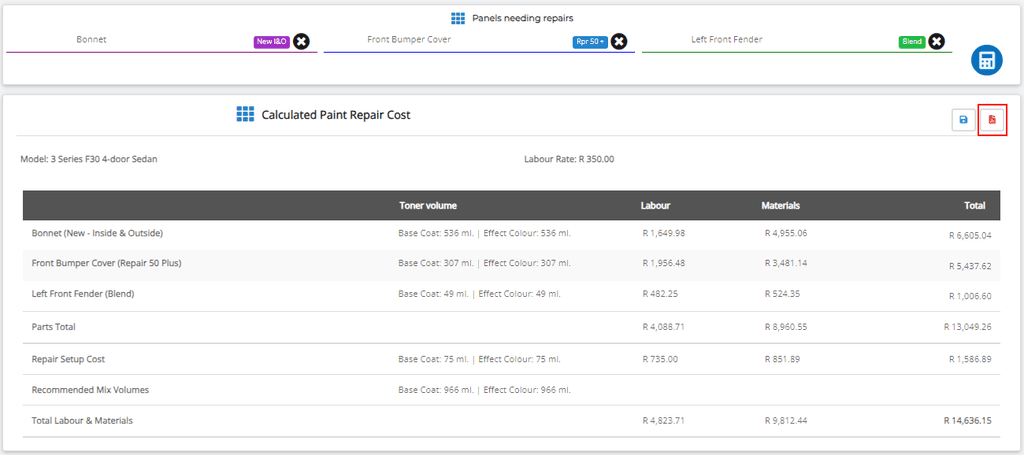
You may select whether you want to display the labor rate used, the gross profit percentage on the material, and the vehicle graphics on the PDF. Download and print the PDF as required.
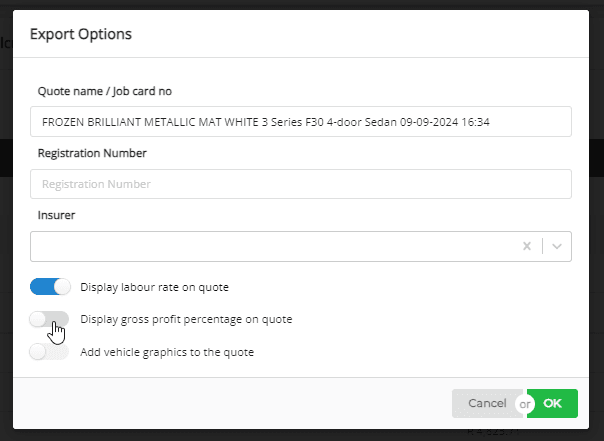
To save the quote to your dashboard, click on the blue "Save" button.
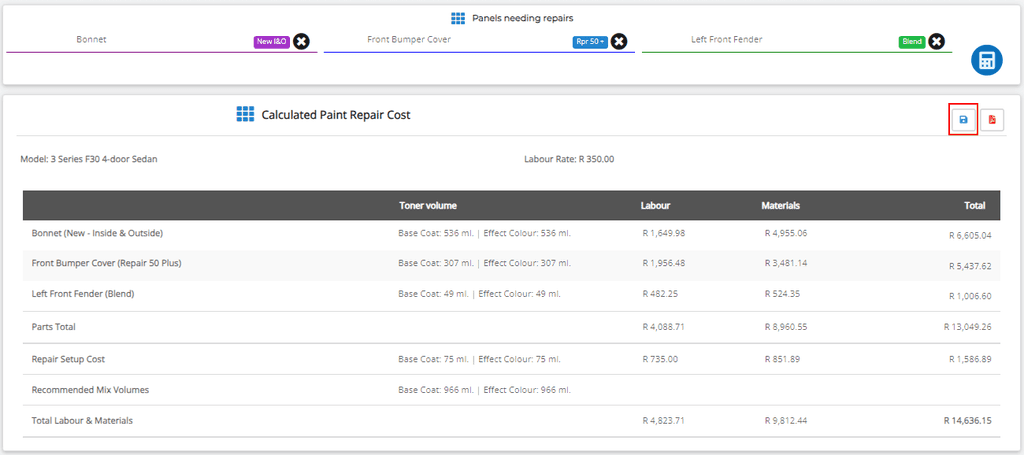
Update the default Quote Name, and optionally, enter the vehicle registration number and Insurer. Click "Save"
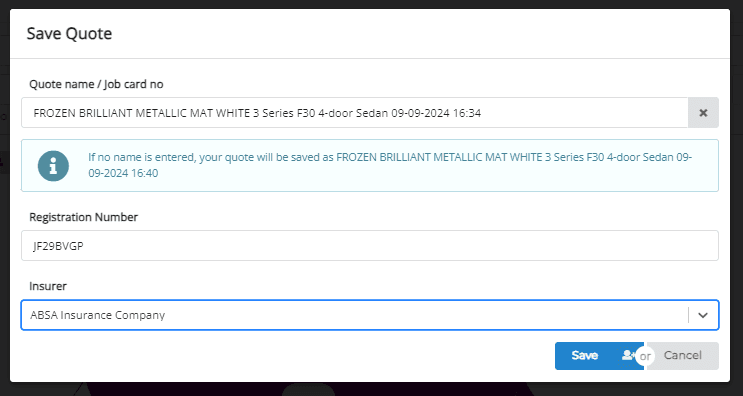
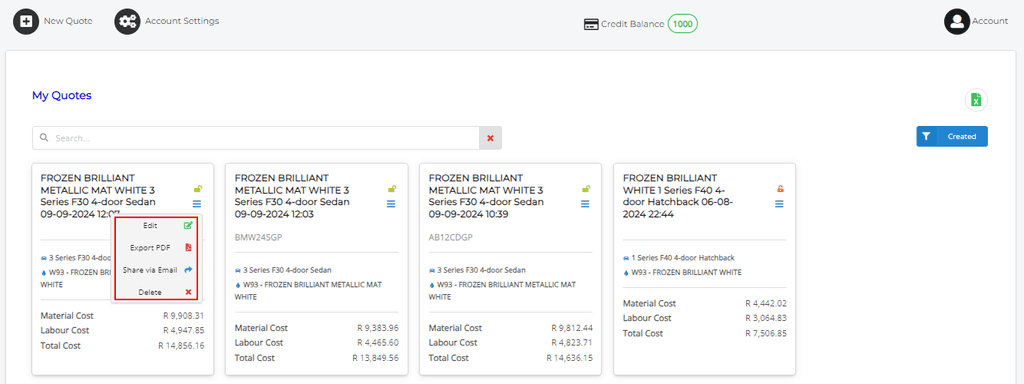
The new quote card will be added to your dashboard. You can use this card to print, share and edit the quote.